What's New?
- You can now insert dynamic custom valuesinto dashboard/report widget conditions and elements using the new{}picker.
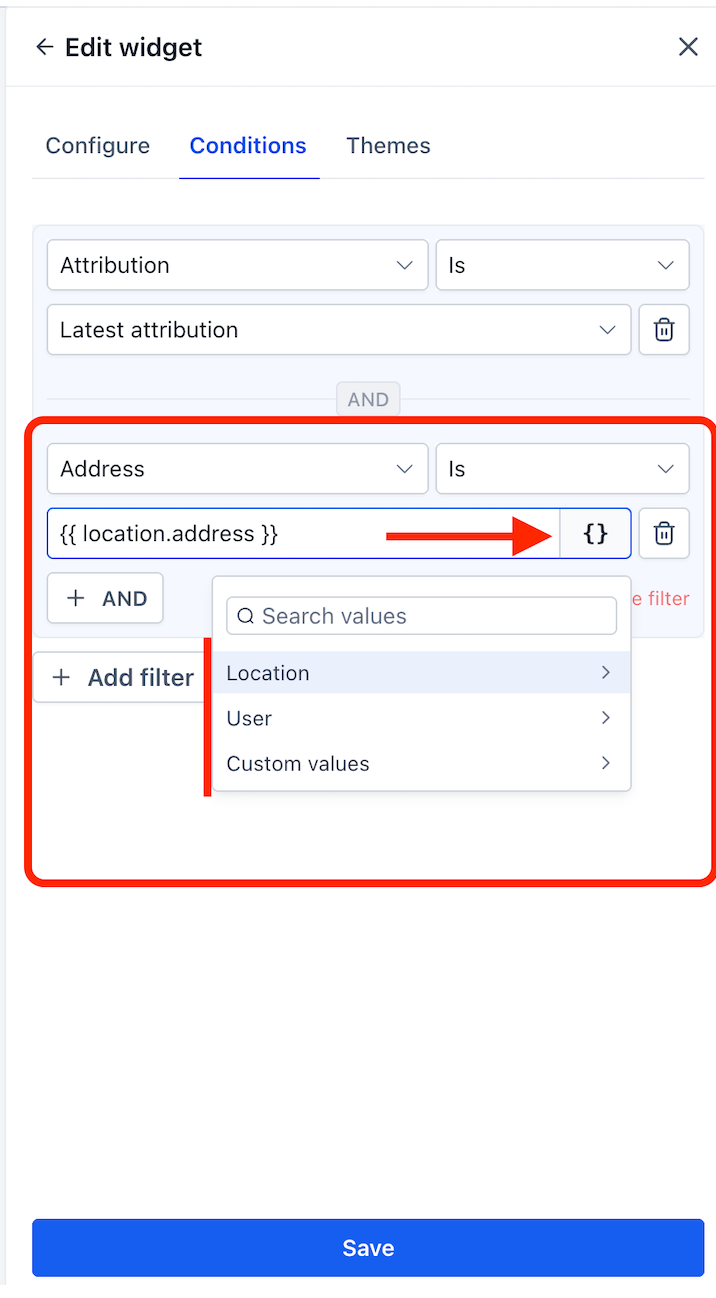
- Supported in widget conditions— wherever you enter a text value (e.g. Address, Source field).
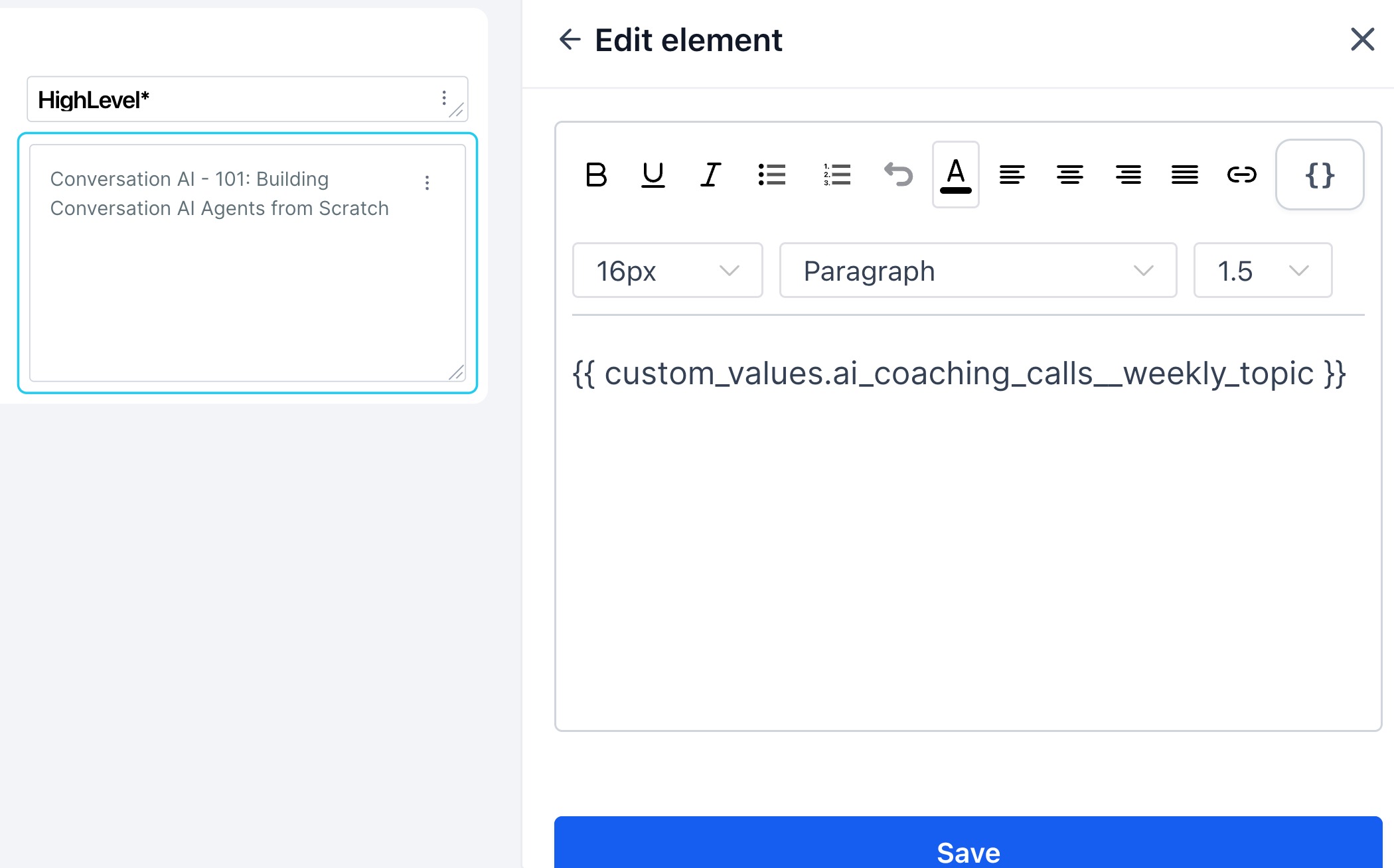
- Supported in dashboard elements— Embed (URL), Title, or Text box.
- Location fieldsavailable: Location Id • Location Name • Email • Phone • Website • Address • City • State • Country • Postal Code • Timezone
- User fieldsavailable: User Id • Email • Phone • Role • Type • First Name • Last Name • Name • Full Name.
- Custom values— everything you've created under Settings → Custom values is available in the picker, organised by folder.
- Tokens resolve automatically per account when the dashboard is viewed.
How It Works:
- Open a dashboard and switch to Edit mode.
- Add or edit a widget — go to the Conditionstab. Or add anElement(Embed, Title, or Text box).
- Click the {}button next to any text input field.
- Browse or search across Location,User, orCustom values.
- Select a field — the token is inserted (e.g. {{ location.name }}).
- Save. Switch to View mode— the token resolves to the real value for that location automatically.
Why It Matters:
- One dashboard for every location— build a single dashboard template and every account sees their own name, address, and data — no duplication needed.
- Dynamic embed URLs— insert a location ID or custom value into an embed URL so each location loads their own external report automatically.
- Personalised dashboard experience— titles, text boxes adapt per location, making dashboards feel purpose-built for each client.
- Faster account setup— what used to take multiple manual setups now takes one.
What's Next?
NA
Notes:
- Custom value insertion is available to dashboard editors only.
- If a token has no value set for a location, it resolves as blank in view mode.
- Location and User system fields are available by default — no setup needed. Custom values require prior setup under Settings → Custom values.
Was this article helpful?
That’s Great!
Thank you for your feedback
Sorry! We couldn't be helpful
Thank you for your feedback
Feedback sent
We appreciate your effort and will try to fix the article