Opportunity forms can now adapt automatically based on each deal.
Admins can control which fields or folders appear—and which fields are required—based on an opportunity’s pipeline, stage, status, or other field values.
What’s New
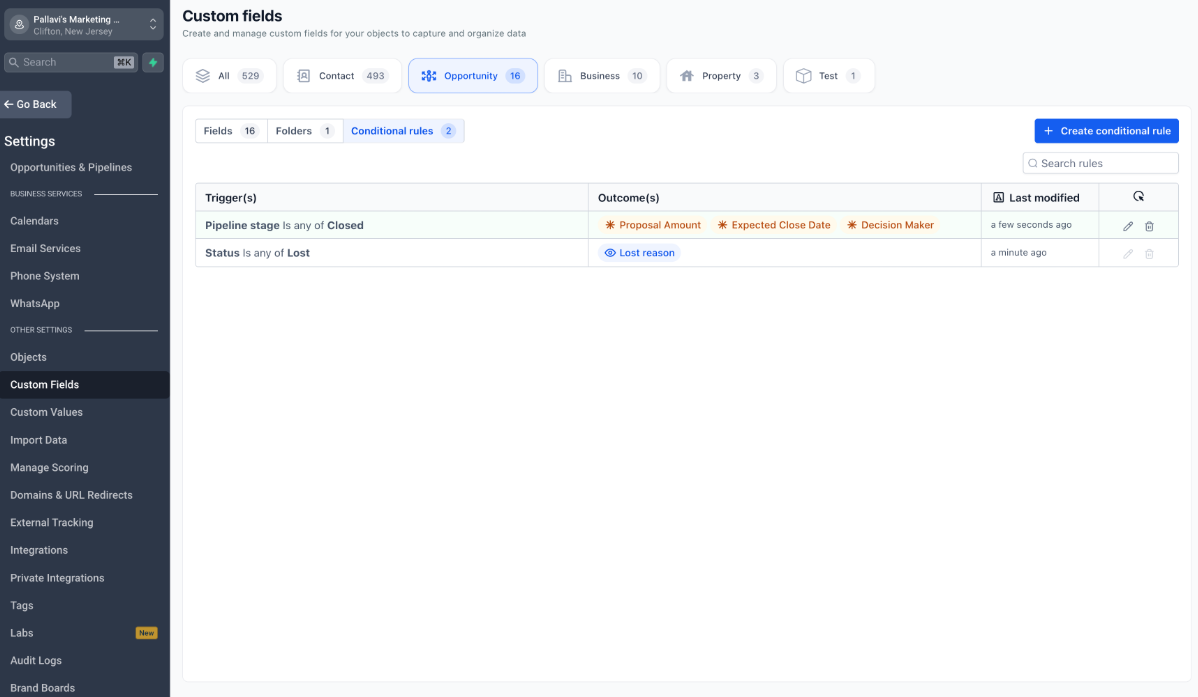
- Create rules using single conditions or AND/OR logic.
- Use pipeline, pipeline stage, status, dropdown, radio, checkbox, and multi-select fields as triggers.
- Show individual fields or entire folders when conditions are met.
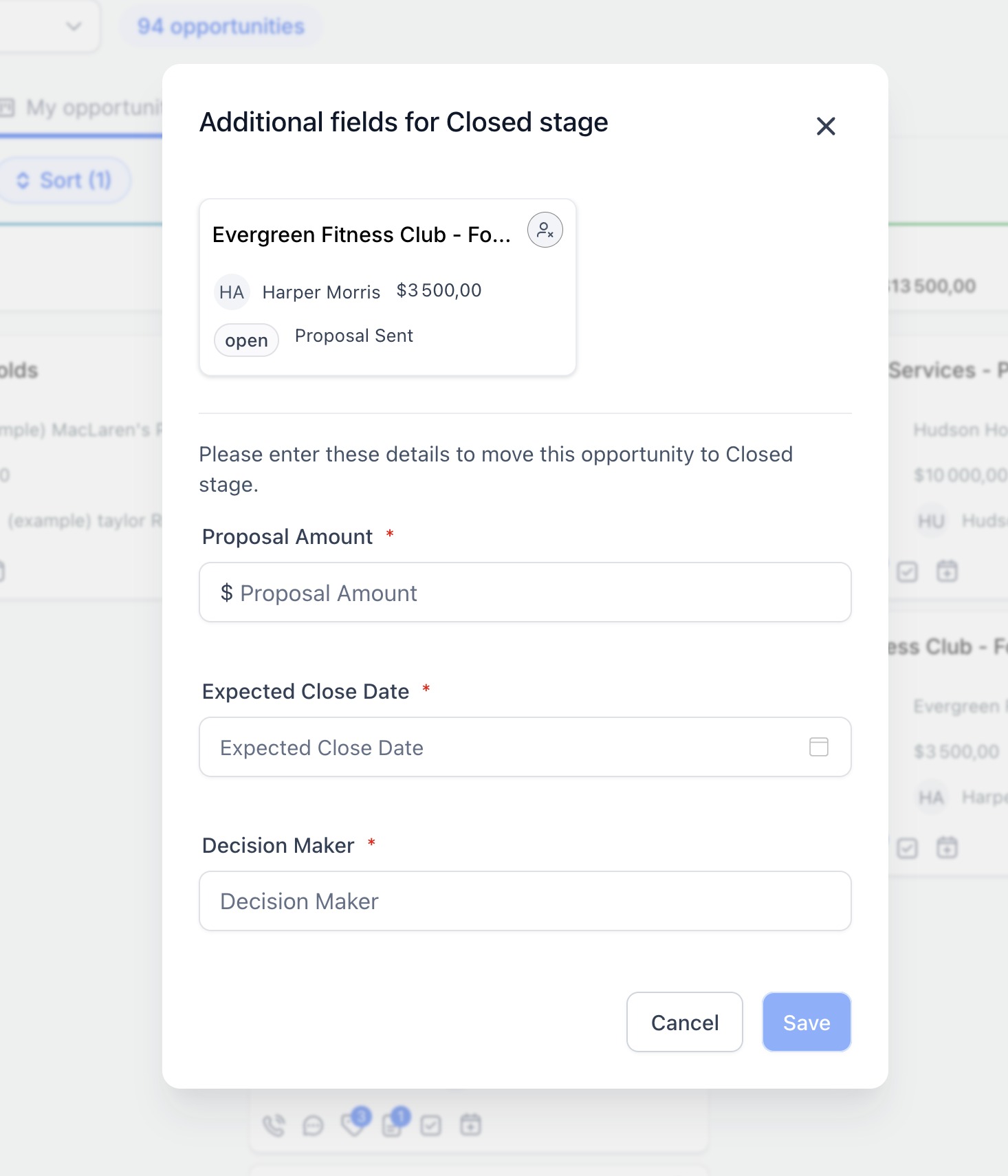
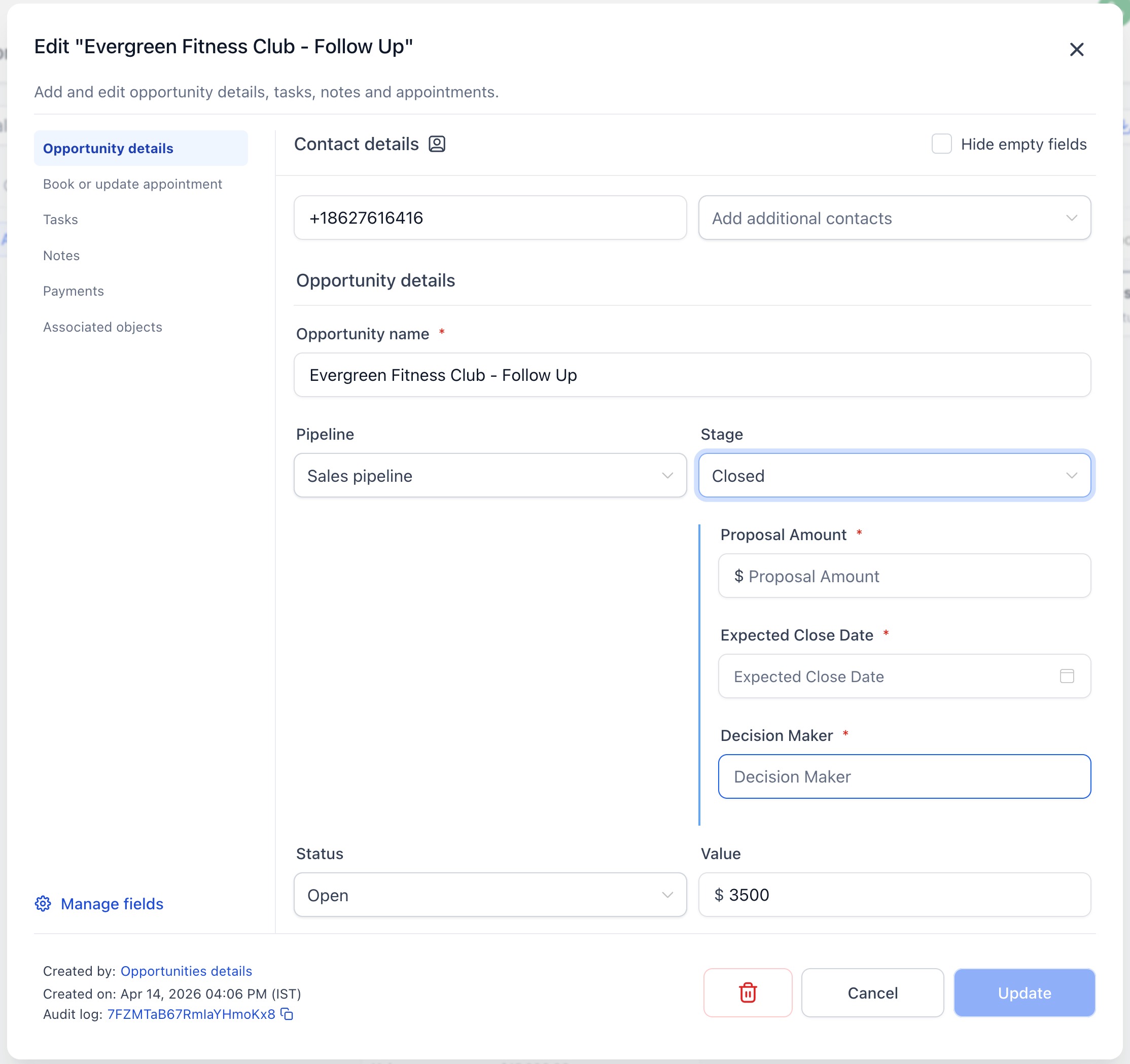
- Make visible fields mandatory and prevent incomplete opportunities from being saved.
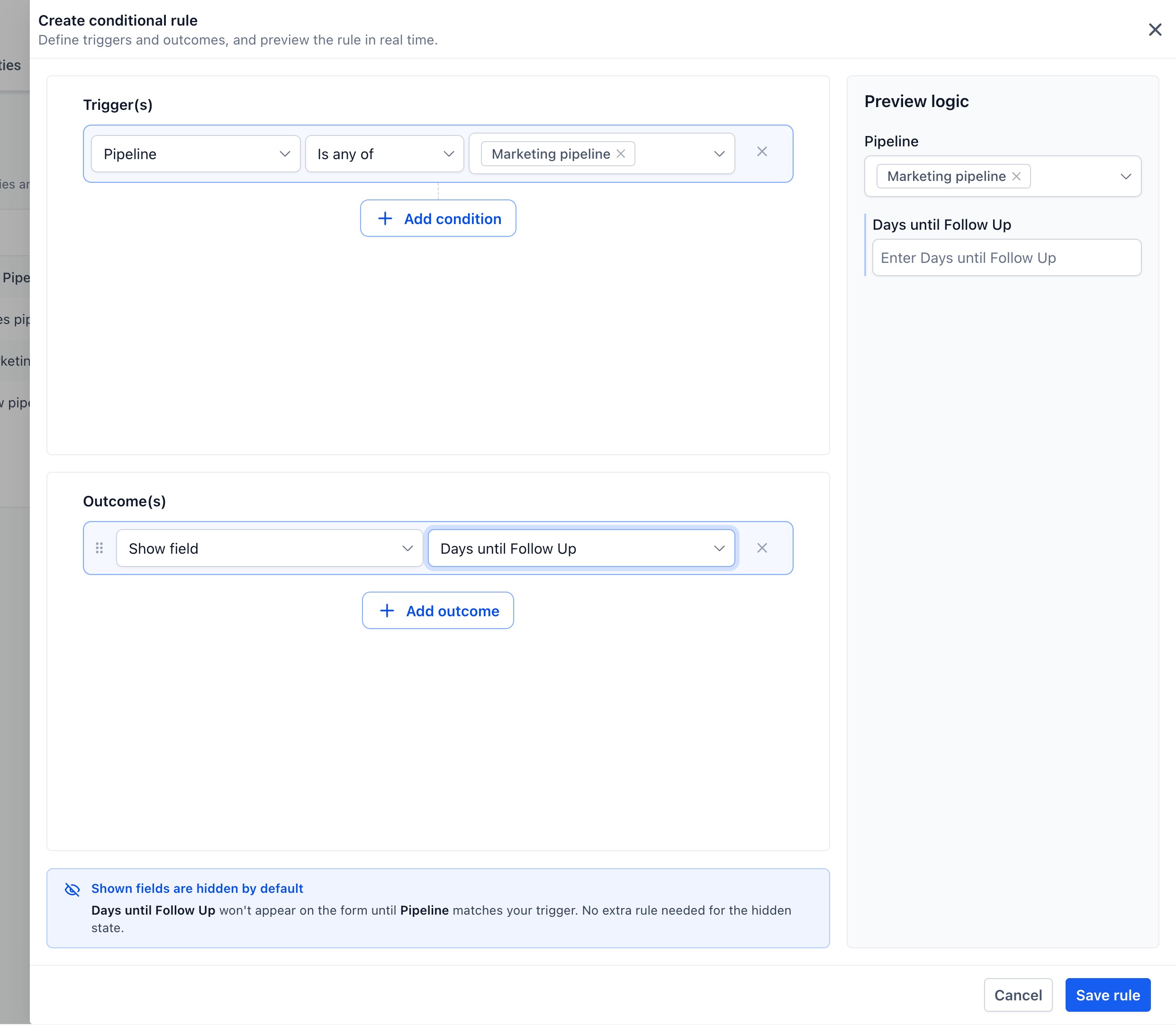
- Preview each rule in real time before saving.
- Apply rules across Add, Edit, and Bulk Edit flows on web and mobile.
- Manage pipeline-specific rules directly from the Pipelines page.
- Activate rules immediately after saving.
How to Get Started
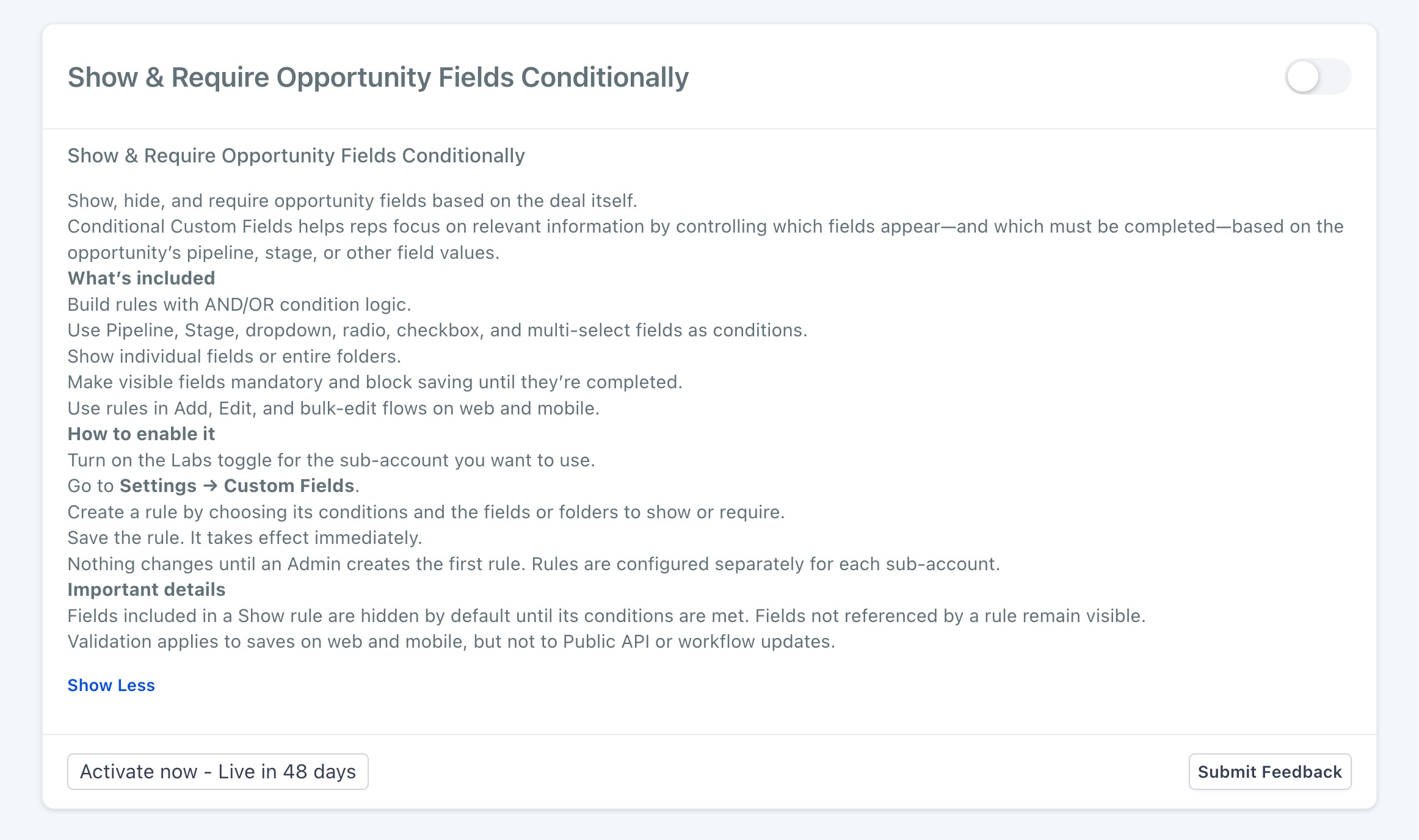
- Go to Settings → Labs.
- Enable Show & Require Opportunity Fields Conditionallyfor the account.
- Navigate to Settings → Custom Fields → Opportunity → Conditional Rules.
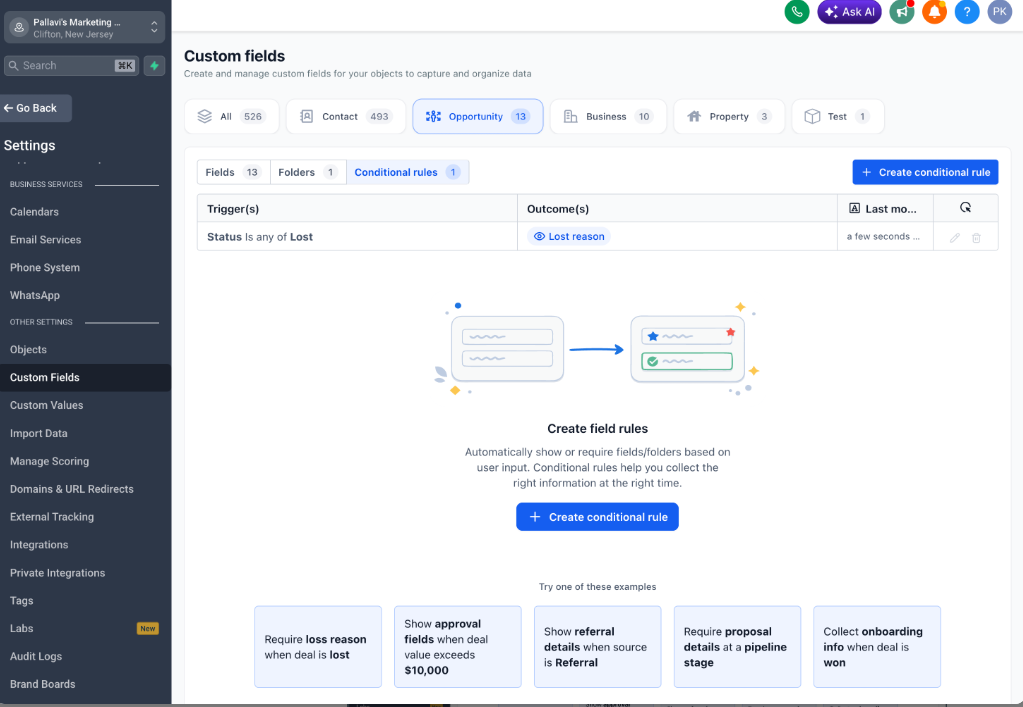
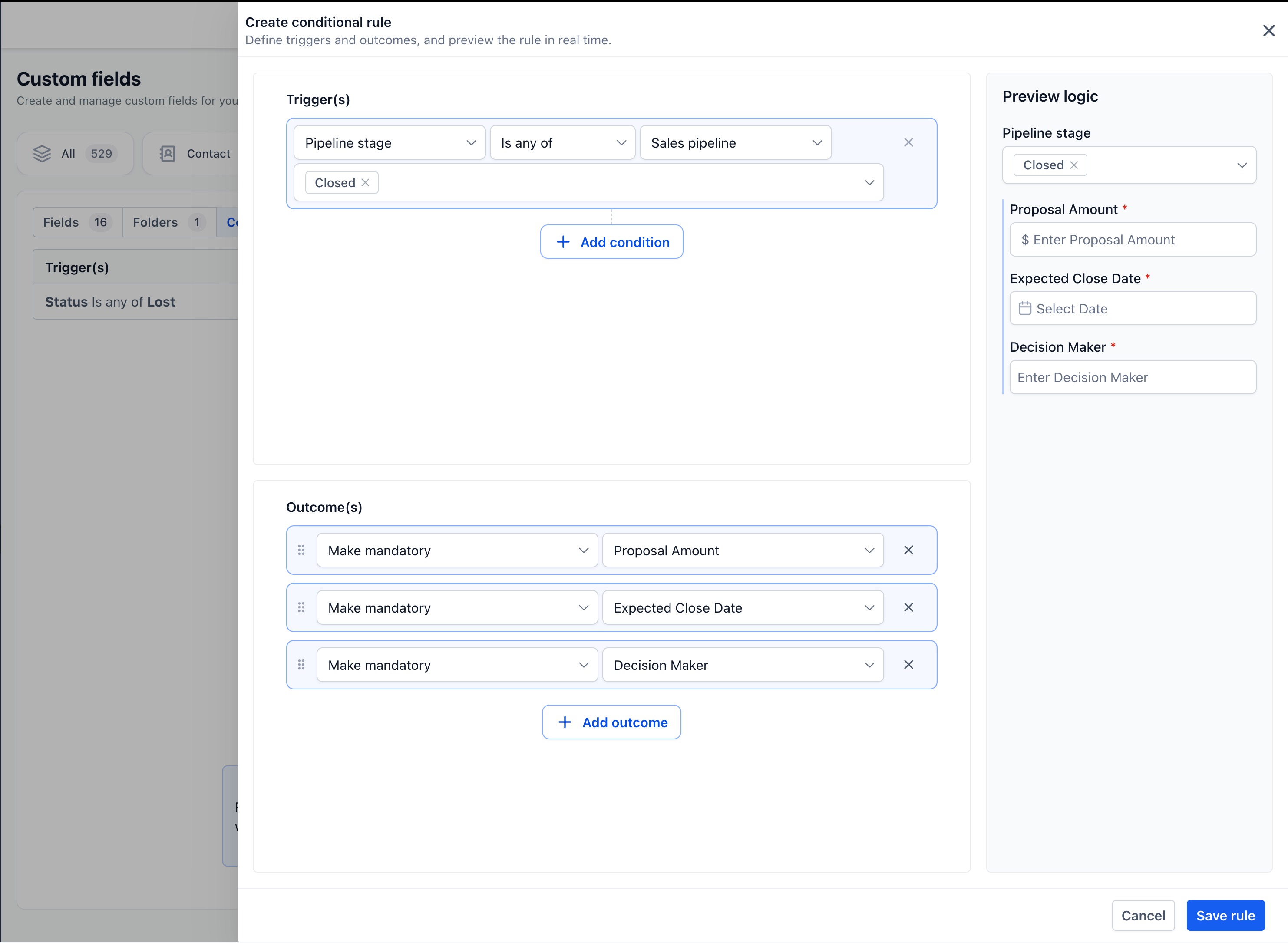
- Click Create conditional rule.
- Choose the trigger conditions and connect them using AND/OR logic.
- Select an outcome:
- Show field
- Show folder
- Make mandatory
- Review the live preview and click Save rule.
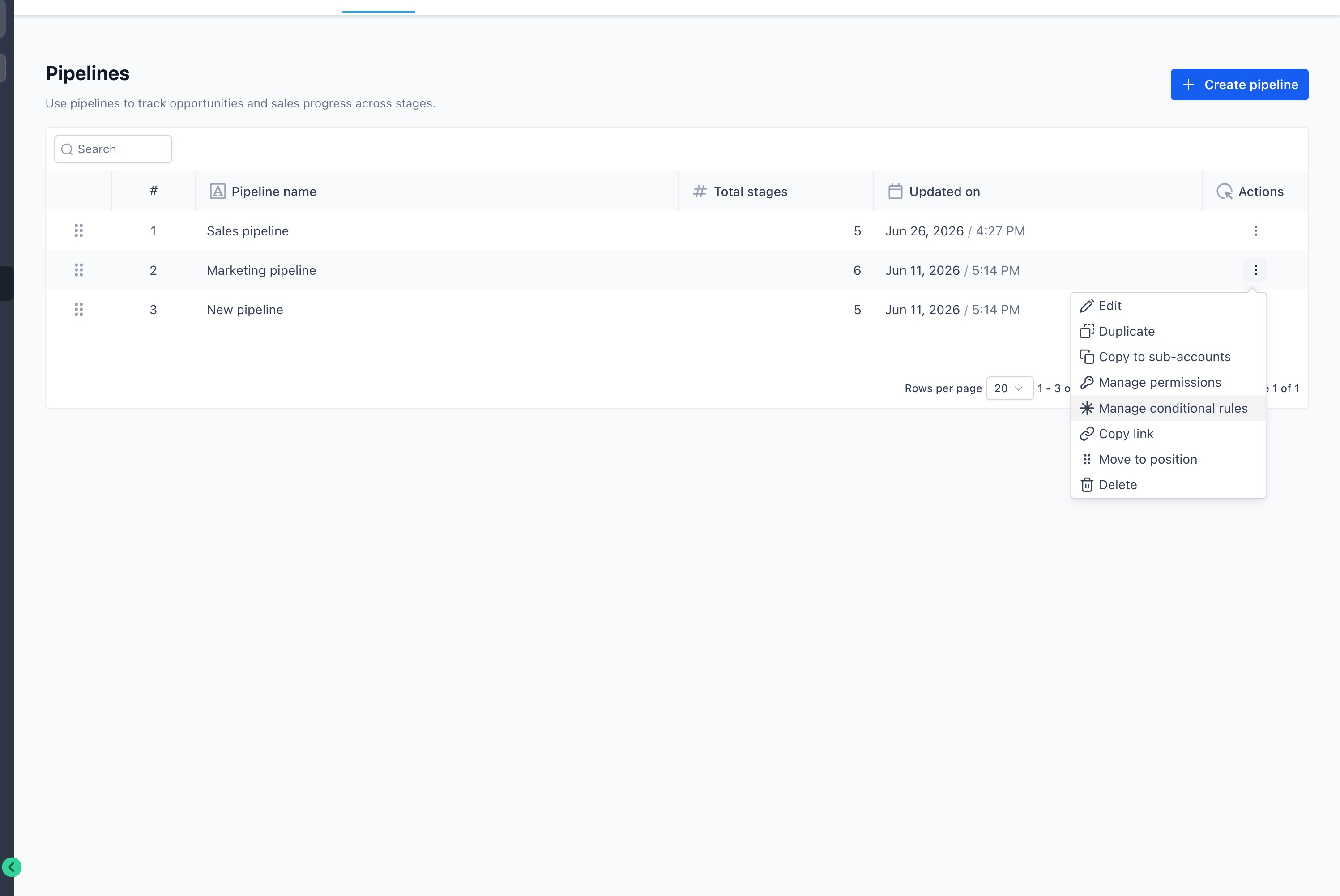
You can also go to
Settings → Opportunities & Pipelines
, open a pipeline or stage’s Actions
menu, and select Manage conditional rules
.
Why It Matters
- Keep opportunity forms focused on relevant information.
- Collect required details at the right stage of the sales process.
- Improve reporting accuracy and consistency.
- Standardize data collection across pipelines and teams.
- Prevent opportunities from being saved with missing required information.
Good to Know
- Fields and folders included in a Showrule remain hidden until its conditions are met.
- Fields not included in a Showrule remain visible as usual.
- If multiple rules apply, their mandatory requirements are combined.
- Only Admins can create, edit, or delete rules.
- Rules are configured separately for each account.
- Nothing changes until an Admin creates the first rule.
- Validation applies to saves on web and mobile, but not to Public API or workflow-based updates.
Was this article helpful?
That’s Great!
Thank you for your feedback
Sorry! We couldn't be helpful
Thank you for your feedback
Feedback sent
We appreciate your effort and will try to fix the article